1 Launch & Connect
GoCalc.AI for ETABS connects directly to a running ETABS instance (v20 or above) via .NET interop — no separate plugin or server installation is required. You just need ETABS open with a model loaded.
How the Connection Works
The app loads ETABSv1.dll from its default install location (e.g. C:\Program Files\Computers and Structures\ETABS 23\ETABSv1.dll) and attaches to the running ETABS process automatically. The path varies by version — use the ETABS_DLL_PATH environment variable to override it.
Step-by-Step Launch
-
Open ETABS (v20 or above) and load a model GoCalc.AI requires ETABS v20 or above to be running with a project open. You can use an existing model or start a new blank file in ETABS first.
-
Launch
GoCalc_AI_ETABS.exeDouble-clickGoCalc_AI_ETABS.exein the dist folder. No Python installation is required — it is a self-contained executable. If running from source, usestart.batorpython app.pyinstead. -
Add your API key via the Options dialog Click the Options button in the toolbar to open the Options & Configuration dialog. Enter your API key for at least one provider (OpenAI, Anthropic, Claude, Google, or Ollama) in the corresponding field and click Save. Keys are encrypted automatically — you never need to edit config files by hand.
-
Verify the connection The top bar shows "Connected to ETABS" in green when the link is established. If it says "ETABS offline", make sure ETABS is open with a model loaded, then restart the app.
-
Type your first command and press Enter Try: "List all stories in this model" — the AI will query ETABS and reply with a formatted table.
API key required. GoCalc.AI needs at least one AI provider API key to function. Click the Options button in the toolbar and enter your key before sending any messages. Supported providers: OpenAI, Anthropic (Claude), Google (Gemini), and Ollama. Keys are stored encrypted — they are never saved as plain text.
ETABS v20 or above required. The app connects via ETABSv1.dll. If your DLL is in a non-default location, set the environment variable ETABS_DLL_PATH to the full path before launching GoCalc.AI.
Model locked after analysis? ETABS automatically locks a model once analysis is run. Ask GoCalc.AI to "unlock the model" before making further geometry changes — it will call the unlock_model action for you.
2 Interface Overview
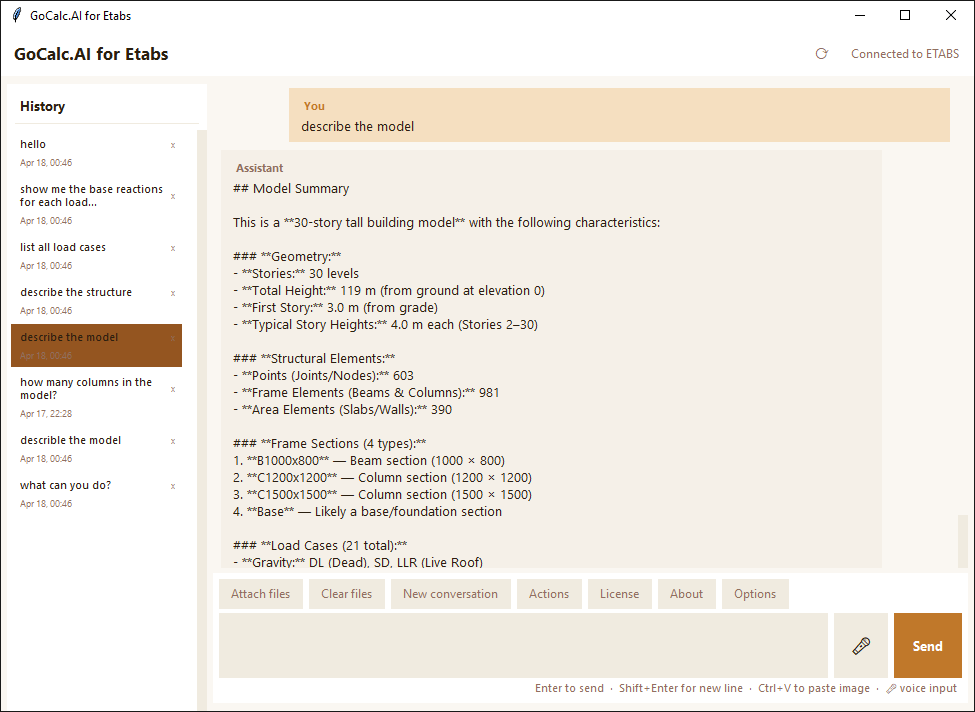
The GoCalc.AI window is divided into four main areas.
Left Sidebar — History
Saved conversations listed by title and date. Click any entry to reload it. Click × to permanently delete a conversation.
Chat Area
Your messages appear on the right (blue), AI replies on the left (white). ETABS actions executed are shown in a green log below each AI response.
File Preview Strip
Thumbnails of attached images and file badges appear here before you send. Click ✕ to remove any individual file.
Composer
Type your message here. Enter sends, Shift+Enter inserts a new line.
Toolbar
Buttons for attaching files, switching AI models, picking themes, and more.
Status Bar
Shows real-time connection state: Connected to ETABS (green) or an error message when ETABS is not reachable.
Stop Button
While the AI is responding, a red Stop button replaces Send. Click it to cancel the response instantly and re-enable the input.
Toolbar Button Reference
| Button | What it does |
|---|---|
| 📎 Attach files | Open a file picker to select images, PDFs, or text/data files to include in your next message. |
| 🗑 Clear files | Remove all pending file attachments at once. |
| ➕ New conversation | Start a fresh chat. The current conversation is auto-saved to the sidebar. |
| ⚡ Actions | Browse, test, and manage all available ETABS actions. |
| ℹ About | View the version, disclaimer, and support contact. |
| 🎨 Style | Open the theme picker to choose from 9 colour themes. |
| 🔌 Test API Keys | Verify that your configured AI provider credentials are all working (hidden by default; enable in Options). |
| 📌 Always on top | Keep the GoCalc.AI window floating above ETABS. |
| ⚙️ Options | Open the Options & Configuration dialog to set API keys, select the AI model, configure the Ollama endpoint, and toggle toolbar buttons — no restart required. Always the last button in the toolbar. |
3 Chatting with the AI
GoCalc.AI understands natural language. Describe what you want — the AI decides which ETABS actions to call, executes them, and replies in natural language.
Example Conversations
Total Fz = −2,450 kN | Mz = 0 kN·m
All support points are listed with their individual Fx, Fy, Fz, Mx, My, Mz values.
What Happens When You Send a Message
-
AI receives your message Your text (and any attached files or images) is sent to the selected AI provider.
-
"Thinking…" appears The AI processes your request and decides which ETABS action(s) to call.
-
Actions execute in ETABS Actions run via the .NET COM interface — changes appear in your ETABS model in real time.
-
Tool log is displayed Every action called appears in the green log below the AI reply (e.g.,
• create_column_grid). -
AI replies in natural language The AI summarises what was done, including counts, values, errors, or warnings.
Be specific about section names. ETABS actions assign sections by name (e.g., COL_400x400, BEAM_300x500). Ask "List all frame sections" first to see the exact names available in your model before placing elements.
4 ETABS Actions
GoCalc.AI includes 24 built-in actions that directly control your ETABS model. The AI calls these automatically — you never need to type action names yourself.
Model Management
| Action | What it does | Example prompt |
|---|---|---|
create_new_model | Creates a blank ETABS model. Specify the unit system (e.g., kN-m). | "Create a new blank model in kN-m units." |
save_model | Saves the current model to a specified file path. Creates parent folders if needed. | "Save the model to C:\Projects\MyBuilding.edb" |
unlock_model | Unlocks a model that was locked after running analysis so you can make further edits. | "Unlock the model so I can make changes." |
refresh_view | Refreshes the ETABS 3D viewport to show the latest geometry changes. | "Refresh the view." |
Geometry Creation
Create Column Grid
Places vertical columns on a regular X-Y grid across multiple storeys. Specify X spacing, Y spacing, number of bays, storey height, number of storeys, and section name.
"Create a 4×3 column grid at 5m spacing, 3m storey height, 4 storeys, section COL_400x400."
Create Beam Grid
Places horizontal beams in both X and Y directions at a single elevation. Specify X spacing, Y spacing, number of bays, elevation, and section name.
"Add beams at elevation 3m on a 4×3 grid, 5m spacing, section BEAM_300x500."
Create Single Beam
Places one beam between two 3D points (X, Y, Z coordinates).
"Create a beam from (0, 0, 3) to (5, 0, 3) using section BEAM_250x500."
Select Beams
Selects one or more beams in ETABS by name. Use ["*"] to select all beams.
"Select all beams in the model."
Analysis
Run Analysis
Executes the structural solver for all defined load cases. The model locks automatically after analysis completes. Results are then available for extraction.
"Run the structural analysis."
After running analysis, the model becomes locked. You cannot modify geometry until you unlock it. Ask GoCalc.AI to "unlock the model" before making any further changes.
Information & Queries
| Action | What it returns | Example prompt |
|---|---|---|
list_all_stories | All stories with names, elevations, heights, and whether each is a master storey. | "List all stories in the model." |
list_all_frame_sections | All defined beam and column section names available in the model. | "What frame sections are defined?" |
list_all_load_cases | All load cases with their names and types (Dead, Live, Wind, Seismic, etc.). | "List all load cases." |
list_point_supports | All support points with their restraint conditions (6 DOF: U1–U3 translation, R1–R3 rotation) and support type. | "Show me all support points and their restraints." |
get_base_reactions | Reaction forces (Fx, Fy, Fz, Mx, My, Mz) at each support for a specified load case. | "Get the base reactions for the Dead load case." |
get_maximum_story_height | The tallest storey name and its height value. | "Which storey is the tallest and what is its height?" |
Counting
Count Total Frames
Returns the total number of beam and column frame elements in the model.
"How many frame elements are in the model?"
Count Total Areas
Returns the total number of area/shell elements (slabs, walls, ramps).
"How many area elements are defined?"
Count Total Points
Returns the total number of joints/nodes in the model.
"How many joints does the model have?"
Count Columns
Returns the count of column elements (vertical frames where the vertical component is dominant).
"How many columns are in the model?"
Data Export
Export Load Cases to CSV
Exports all load case names to a CSV file saved on your Desktop as ETABS_LoadCases.csv.
"Export the load cases to a CSV file."
Write CSV File
Writes any 2D data (rows and columns) to a named CSV file on your Desktop. The AI generates the data content.
"Save the story data to a CSV called StoryTable.csv."
Custom Actions: If a built-in action doesn't cover your need, ask the AI to create one. For example: "Create an action that reads storey drifts from the database table." The AI writes and installs the action automatically — no restart required. Custom actions appear in the Actions Browser immediately.
Example: Spiral Tower Created by the AI
The create_spiral_tower action generates a full parametric spiral tower directly in ETABS — 30 stories, 10 columns per level, radial beams, and a spiral rotation. The image below shows ETABS after the AI executed this action from a single chat prompt.
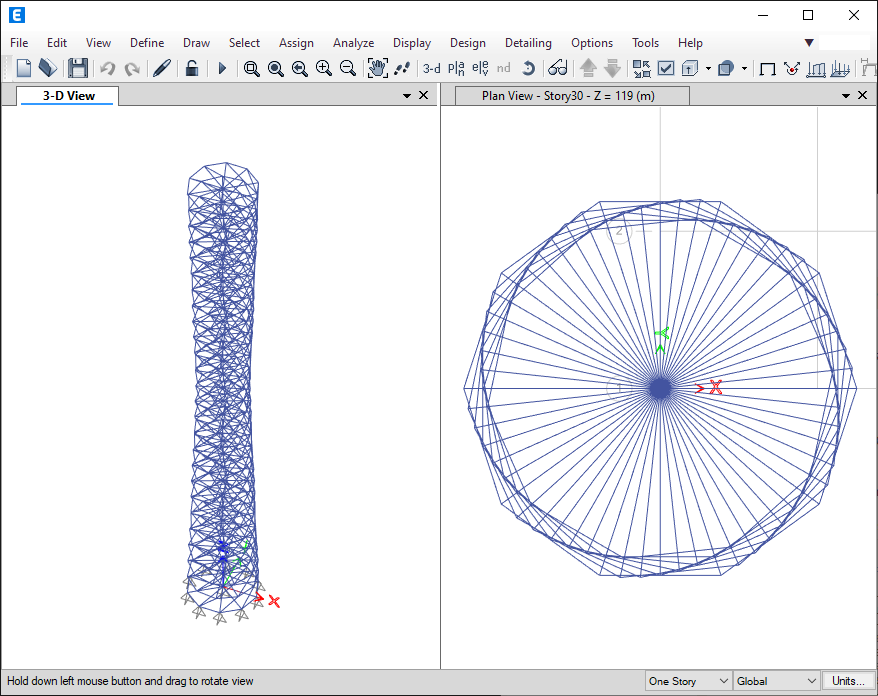
create_spiral_tower action placed all columns, radial beams, and circumferential beams instantly. 3-D view on the left, plan view at Story 30 on the right.Actions Browser
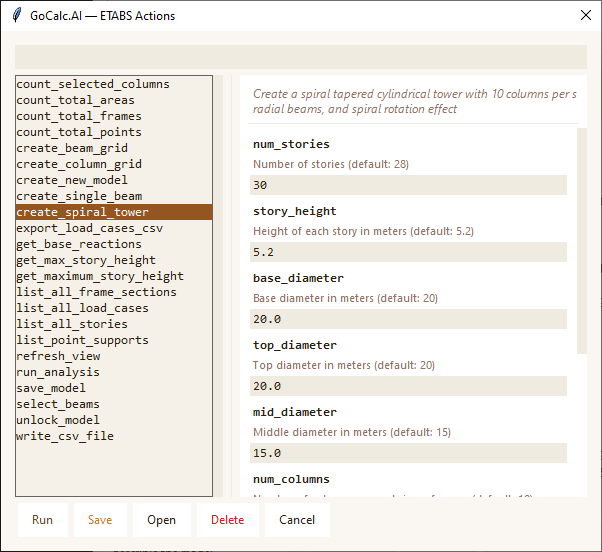
Click the Actions button in the toolbar to open the Actions Browser. Select any action to see and edit its input parameters in the right panel before running it.
| Feature | How to use it |
|---|---|
| Search / Filter | Type in the search box to filter actions by name in real time. |
| Test Run | Select an action and click Test Run to execute it with its default test arguments — useful for verifying a new custom action. |
| Double-click | Double-click any action to immediately test-run it. |
| Open (.py) | Open the action's Python source file in your default editor. |
| Delete | Remove custom actions you no longer need. Built-in actions cannot be deleted. |
5 Full Analysis Workflow
A typical GoCalc.AI for ETABS session follows this sequence. You can do all of this through natural-language conversation — no need to switch between menus in ETABS.
Sample Conversation for a Complete Model
6 Files & Voice Input
GoCalc.AI is multimodal — you can send images, documents, and spoken commands alongside your text messages.
Attaching Images
Paste from Clipboard
Press Ctrl+V anywhere in the chat to paste a screenshot directly. Perfect for sharing your current ETABS 3D view or a result plot without saving to disk.
Attach Files
Click the attach button and browse for PNG, JPG, JPEG, GIF, BMP, or WebP images. Multiple files can be selected at once.
Remove Before Sending
Each attachment shows a thumbnail with a ✕ button. Click it to remove a file before you send.
Take a screenshot of your ETABS model or a deformed shape plot, paste it with Ctrl+V, and ask "Does this deformed shape look correct for a lateral load?" — the AI will analyse the image and give feedback.
Supported Document Types
| File type | How the AI uses it |
|---|---|
| Reads the text content — useful for attaching structural specifications, design codes, or project briefs. | |
| CSV | Reads the rows of data — useful for load tables, coordinate lists, or section schedules you want the AI to interpret. |
| TXT / MD | Reads the content as plain text. |
| JSON / PY | Reads as structured data or code. |
Voice Input
-
Click the 🎤 microphone button in the composer The button turns red and shows a stop icon (⏹). Speak your command clearly.
-
Click ⏹ to stop recording Your speech is sent to OpenAI Whisper for transcription.
-
Review and send The transcribed text appears in the message box. Edit if needed, then press Enter.
Voice input uses OpenAI Whisper for transcription and requires the sounddevice and numpy packages. These are included in requirements.txt and installed automatically by start.bat. An OpenAI API key must also be configured, even if you are using Claude or Gemini as your main AI model.
7 Conversation History
GoCalc.AI automatically saves every conversation so you can pick up where you left off or review past sessions.
Auto-Saved
Every message exchange is saved after each reply. No manual saving is required.
Reload Any Conversation
Click any conversation in the left sidebar to restore the full message history and continue from that point.
Start New
Click New Conversation in the toolbar. The current chat stays saved in the sidebar.
Delete
Click the × button next to any sidebar entry to permanently remove that conversation.
Conversations are stored locally in conversation_history.json in the GoCalc_AI_ETABS application folder. The sidebar shows each conversation's title (from your first message) and the date/time it was created. The 10 most recent conversations are displayed.
8 AI Models
GoCalc.AI for ETABS supports four AI providers. Select your model in the Options dialog (⚙️ in the toolbar) — changes take effect immediately without restarting the app.
OpenAI (ChatGPT)
GPT-4.1, GPT-4o, o1, o3, o4-mini and more. Excellent all-around for ETABS tasks and required for voice transcription (Whisper).
Anthropic (Claude)
Claude Opus, Sonnet, and Haiku. Excellent for detailed structural reasoning and multi-step analysis conversations.
Google (Gemini)
Gemini Pro and Flash models. Strong multimodal support — useful when sending ETABS screenshots for analysis.
Ollama (Extended)
Kimi, Qwen3, DeepSeek, Mistral, Gemma, and 25+ more models for specialised or offline use cases.
Not sure which model to use? Start with the default (GPT-4o or Claude Sonnet). Switch to a faster model like gpt-4.1-mini or claude-haiku for simple queries like listing stories or counting elements to save time. Open Options → AI Model to change the model at any time.
Attaching images? Not all models support image input. If you attach a screenshot and the selected model does not support vision, GoCalc.AI will display a short error message asking you to remove the image or switch to a vision-capable model (e.g., GPT-4o, Claude Sonnet, or Gemini Flash).
9 Options & Configuration
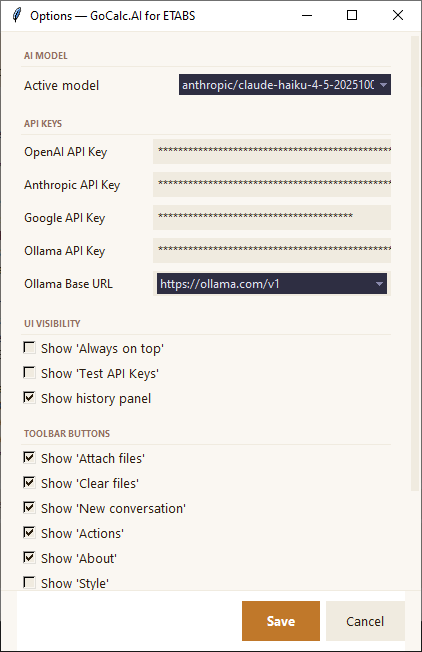
Click the Options button (always the last button in the toolbar) to open the Options & Configuration dialog. All settings take effect immediately — no restart required.
AI Model
Choose the active AI provider and model from the AI Model drop-down at the top of the Options dialog. The selection is saved to aimodel.json and applied to the current session right away.
API Keys
Enter / Update Keys
Type or paste your API key into the corresponding field (OpenAI, Anthropic, Google, or Ollama). Click Save and the key is encrypted before being written to aimodel.json — no plain-text keys are ever stored on disk.
Machine-Specific Encryption
Keys are encrypted using a key derived from your machine name and Windows username. The same aimodel.json file cannot be decrypted on a different computer. Existing plain-text keys in old config files are still recognised and continue to work.
Ollama Base URL
Select Cloud (ollama.com) or Local (localhost:11434) from the Ollama URL drop-down, or type a custom endpoint. This controls where Ollama API calls are sent.
| Provider | Field | Where to get a key |
|---|---|---|
| OpenAI | OpenAI API Key | platform.openai.com → API keys |
| Anthropic | Anthropic API Key | console.anthropic.com → API keys |
| Google API Key | aistudio.google.com → Get API key | |
| Ollama | Ollama API Key + Base URL | ollama.com account page (cloud), or leave key blank for local Ollama |
Toolbar Button Visibility
Use the checkboxes in the Toolbar Buttons section to show or hide individual buttons. Changes are written to config.json and the toolbar updates immediately without closing the dialog.
| Toggle | Controls | Default |
|---|---|---|
| Show Attach Files button | 📎 Attach files button | Visible |
| Show Clear Files button | 🗑 Clear files button | Visible |
| Show New Conversation button | ➕ New conversation button | Visible |
| Show Actions button | ⚡ Actions browser button | Visible |
| Show About button | ℹ About dialog button | Visible |
| Show Style button | 🎨 Theme picker button | Visible |
| Show Test API Keys button | 🔌 API key test button | Hidden |
| Show Always on Top checkbox | 📌 Always on top toggle | Visible |
Saving
Click Save at the bottom of the dialog to write all changes. The dialog closes automatically. There is no confirmation popup — the save is silent and immediate.
Advanced users can still edit aimodel.json and config.json directly with a text editor. The Options dialog reads and writes the same files — both approaches are compatible.
10 Themes
Click the Style button in the toolbar to pick a colour theme. Your selection is saved automatically and applied every time you open GoCalc.AI.
The active theme is saved to %PROGRAMDATA%\GoCalcAI_Etabs\theme.json and restored on next launch. All dialogs (About, Actions) inherit the active theme.
11 Keyboard Shortcuts
| Shortcut | Action |
|---|---|
| Enter | Send message |
| Click Stop | Cancel the current AI response and re-enable the input immediately |
| Shift + Enter | Insert a new line in the message |
| Ctrl + V | Paste image from clipboard into attachments |
| Click 🎤 then ⏹ | Start / stop voice recording |
| Double-click an action | Test-run the action in the Actions Browser |
| Click × in sidebar | Delete a saved conversation |
| Ctrl + Z (in ETABS) | Undo the last AI-executed change to the ETABS model |
12 Tips & Best Practices
Check sections before placing
Run "List all frame sections" before creating columns or beams. ETABS actions assign sections by exact name — if the name doesn't exist in the model, the action will fail.
Unlock after analysis
After running analysis the model locks automatically. Ask "Unlock the model" before making any geometry edits or you will get an error.
Use screenshots for context
Paste an ETABS screenshot with Ctrl+V and ask questions about what's shown. The AI can read and analyse images of your model or result plots.
Build incrementally
Create columns first, then beams level by level, then supports, then load cases. Checking counts between steps catches problems early.
Always on top
Enable "Always on top" so the chat window stays visible while you work in ETABS — no alt-tabbing required.
Query load cases before analysis
Use "List all load cases" before running analysis to confirm that Dead, Live, Wind, and other cases are properly defined in ETABS.
Save frequently
Ask GoCalc.AI to "save the model" after major geometry changes and after analysis completes. ETABS doesn't auto-save.
Request custom actions
If no built-in action covers your need, ask: "Create an action that reads storey drifts from the ETABS results table." The AI writes and installs it instantly.
Switch models on the fly
Open Options and change the AI model mid-conversation. The next message you send uses the new model — no restart, no lost context.
Keep API keys secure
Always enter keys through the Options dialog — they are encrypted with a machine-specific key before being written to aimodel.json. Never share your aimodel.json file as it contains encrypted credentials.
Example Prompts to Try
Undo is your safety net. Press Ctrl+Z in ETABS to undo any AI-generated change — it works exactly like a manual operation. Always save before running analysis as that action cannot be undone.
AI-generated changes are real. Every action GoCalc.AI calls modifies your live ETABS model immediately. Review the tool log after each message to confirm what was executed. If anything looks wrong, undo in ETABS before proceeding.