1 Launch & Setup
GoCalc.AI for Excel connects directly to Microsoft Excel via Windows COM automation (win32com). There is no HTTP server or Revit ribbon — just open Excel, launch the chat window, and start talking.
How the System Works
Step-by-Step Launch
-
Open Microsoft Excel and load a workbook GoCalc.AI connects to the Excel instance that is already running on your machine. Open any workbook — new or existing — before launching the chat window.
-
Launch
GoCalc_AI_EXCEL.exeDouble-clickGoCalc_AI_EXCEL.exein the dist folder to open the chat window. No Python installation is required. If running from source, usestart.batorpython app.pyinstead. -
Add your API key via the Options dialog Click the Options button in the toolbar to open the Options & Configuration dialog. Enter your API key for at least one provider (OpenAI, Anthropic, Google, or Ollama) in the corresponding field and click Save. Keys are encrypted automatically — you never need to edit config files by hand.
-
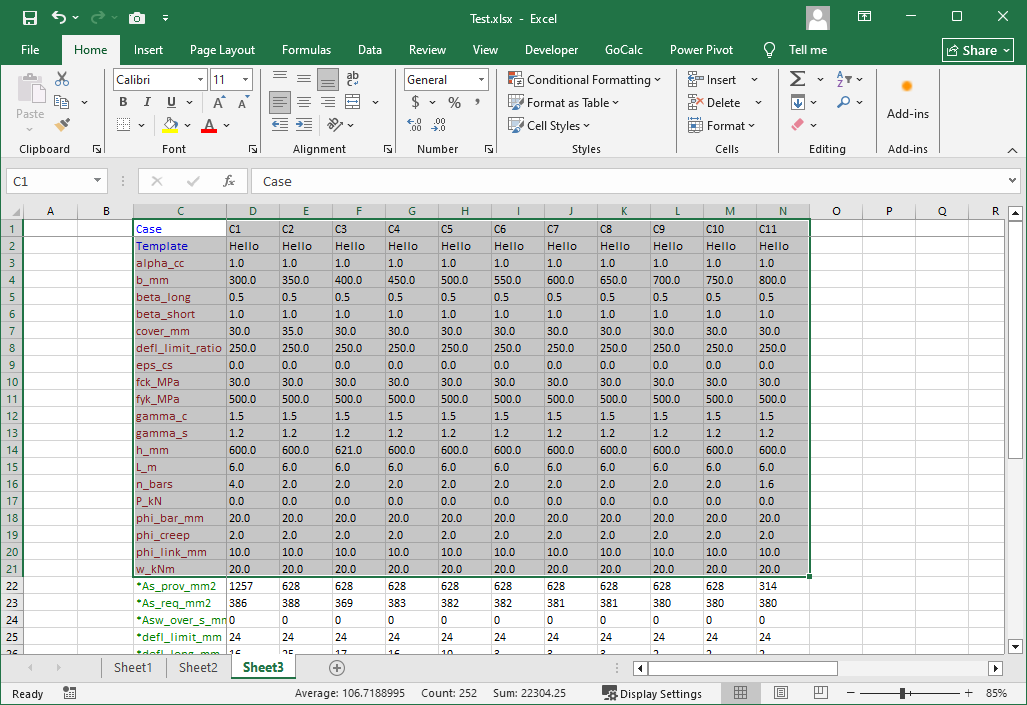
Verify the connection The top bar shows "Connected to Excel" when GoCalc.AI has successfully attached to the running Excel instance. If it shows an error, make sure Excel is open and try sending any message — the connection is retried automatically.
-
Type your first command and press Enter Try: "What sheets does this workbook have?" — the AI will query your workbook and reply in natural language.
API key required. GoCalc.AI needs at least one AI provider API key to function. Click the Options button in the toolbar and enter your key before sending any messages. Supported providers: OpenAI, Anthropic (Claude), Google (Gemini), and Ollama. Keys are stored encrypted — they are never saved as plain text.
Open Excel first. GoCalc.AI connects to an already-running Excel instance via COM. If Excel is not open, the status will show a connection error. Simply open Excel with any workbook and the connection is established automatically on the next message.
Microsoft Excel required. GoCalc.AI uses Windows COM automation (win32com) to control Excel. Microsoft Excel must be installed on your Windows machine. The app is not compatible with LibreOffice, Google Sheets, or Excel Online.
2 Interface Overview
The GoCalc.AI window is divided into four main areas.
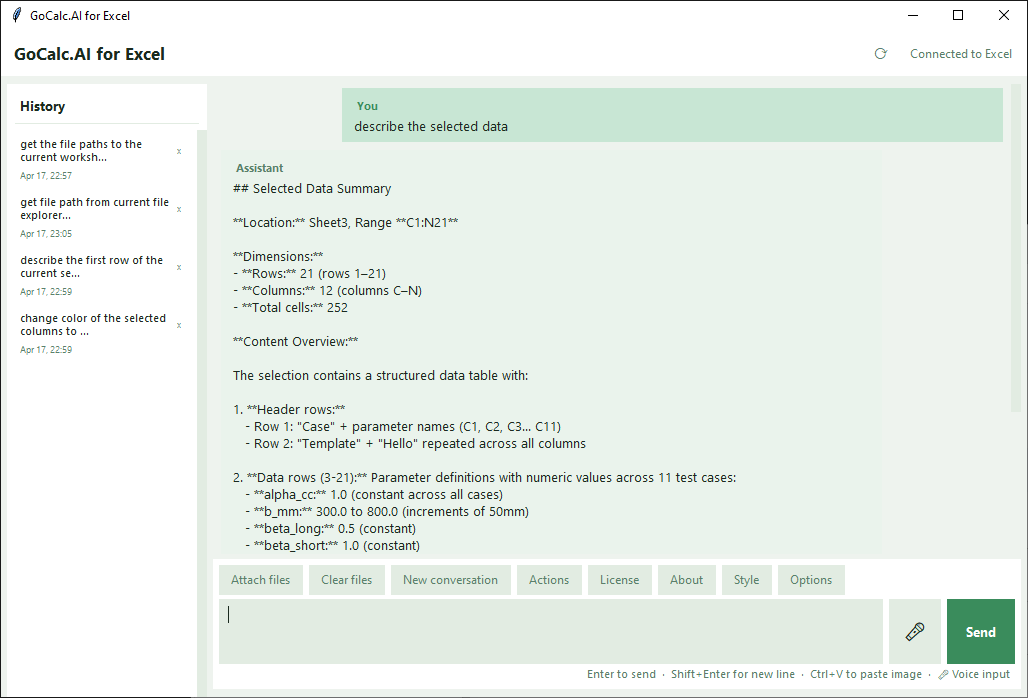
Left Sidebar — History
Saved conversations listed by title and date. Click any entry to reload it. Click × to delete.
Chat Area
Your messages appear on the right, AI replies on the left. Executed Excel actions are shown in a green log below each AI response.
File Preview Strip
Thumbnails of attached images and file badges appear here before sending. Click ✕ on any preview to remove it.
Composer
Type your message. Enter sends, Shift+Enter inserts a new line.
Toolbar
Buttons for attaching files, switching models, picking themes, and more.
Status Bar
Shows real-time connection state: Connected to Excel when the COM connection is active, or an error when Excel isn't reachable.
Stop Button
While the AI is responding, a red Stop button replaces Send. Click it to cancel the response instantly and re-enable the input.
Toolbar Button Reference
| Button | What it does |
|---|---|
| 📎 Attach files | Open a file picker to select images, PDFs, or text files to include in your next message. |
| 🗑 Clear files | Remove all pending attachments at once. |
| ➕ New conversation | Start a fresh chat. The current conversation is auto-saved to the sidebar. |
| ⚡ Actions | Browse, test, and manage all available Excel actions. |
| ℹ About | View the version, disclaimer, and support contact details. |
| 🎨 Style | Open the theme picker to choose from 10 colour themes. |
| 🔌 Test API Keys | Verify that your configured AI provider credentials are working (hidden by default; enable in Options). |
| 📌 Always on top | Keep the GoCalc.AI window floating above all other windows. |
| ⚙️ Options | Open the Options & Configuration dialog to set API keys, select the AI model, configure the Ollama endpoint, and toggle toolbar buttons — no restart required. Always the last button in the toolbar. |
3 Chatting with the AI
GoCalc.AI understands natural language. Describe what you want to do — the AI decides which Excel actions to call, executes them against the active workbook, and replies in natural language.
Example Conversations
What Happens When You Send a Message
-
AI receives your message Your text (and any attached files) is sent to the selected AI provider.
-
"Thinking…" indicator appears The AI processes your request and decides whether to call one or more Excel actions.
-
Actions execute against the active workbook If actions are needed, they run via COM in real time. You'll see changes appear in your Excel workbook immediately.
-
Tool log is displayed Every action called appears in the green log below the AI reply (e.g.,
• describe_workbook_data). -
AI replies in natural language The AI describes what was done, including data summaries, results, or any errors that occurred.
Reference sheets and cells by name. Say "Sheet1, cell B5" or "the Raw Data sheet, column C" — the AI handles the COM addressing automatically. If a sheet or range doesn't exist, it will tell you before trying to write anything.
4 Excel Actions
GoCalc.AI ships with a set of built-in actions and can create unlimited custom ones on demand. The AI calls these automatically — you never need to name them explicitly unless you want to.
Built-in Actions
| Action | What it does | Example prompt |
|---|---|---|
list_sheets | Returns the names of all sheets in the active workbook | "What sheets does this workbook have?" |
describe_workbook_data | Reads all sheets and returns row/column counts, headers, and a 5-row preview for each | "Describe the data in this workbook." |
get_active_sheet_info | Returns the name, used-range dimensions, and a 10-row data preview of the currently active sheet | "What's on the active sheet?" |
write_hello_to_a1 | Writes "hello" to cell A1 of Sheet1 — useful for verifying the COM connection works | "Write hello to A1 on Sheet1." |
Custom Actions — Unlimited & Instant
If a built-in action doesn't cover your need, just ask the AI in natural language. GoCalc.AI will propose a new action, wait for your approval, then write the Python file and hot-reload the library — no restart required.
Read & Query
Read a range, count non-empty cells, find a value, read a named table…
"Read the values in column B of the Budget sheet."
Write & Format
Write a formula, fill a range, set cell colour, bold headers…
"Write a SUM formula in E2 for the range E3:E100."
Calculate & Analyse
Sum a column, average a range, count rows matching a condition…
"What is the total demand in column F?"
Cross-Sheet Operations
Copy data between sheets, consolidate rows, compare two sheets…
"Copy rows where Status = 'Done' to the Archive sheet."
How custom action creation works: When no matching action exists, the AI describes what it would create and asks your approval. After you confirm, it calls create_action internally, saves the Python file to the actions/ folder, and hot-reloads the library. Reply "Yes, create it" to proceed. The new action is immediately available — no restart needed.
AUTOFIX — Self-Correcting Action Creation
When AUTOFIX is enabled (default: on), each newly created action is automatically test-run against the live workbook using its built-in TEST_ARGS. If the test fails, the AI silently fixes the code and retries — up to the configured maximum attempts.
| AUTOFIX result | What happens |
|---|---|
| Test passes | The AI reports the result directly — you don't need to retry the command. |
| Test fails | The AI fixes the code and calls create_action again silently. |
| Max retries reached | The AI stops and reports the failure so you can inspect the action file manually. |
Configure AUTOFIX in the Options dialog: enable/disable the toggle and set the maximum number of retries (0–10). See Section 8 — Options for details.
Custom Action API Reference
Every custom action is a plain Python file with a TOOL_DEFINITION dict and an execute(ctx, …) function. The ctx object provides these helpers:
| Helper | What it does |
|---|---|
ctx.wb | The active win32com Workbook object |
ctx.ws | The active win32com Worksheet object |
ctx.app | The win32com Excel Application object |
ctx.read_cell(row, col, sheet=None) | Read a cell value (1-based row/col) |
ctx.write_cell(row, col, value, sheet=None) | Write a value to a cell |
ctx.read_range("A1:C10", sheet=None) | Read a block of cells as a 2-D tuple |
ctx.write_range("A1:C3", [[…],…], sheet=None) | Write a 2-D list to a range |
ctx.get_sheet(name_or_index) | Return a Worksheet by name or index |
ctx.list_sheet_names() | Return a list of all sheet names |
ctx.save() | Save the workbook |
ctx.calculate() | Trigger a full recalculation |
Actions Browser
Click the Actions button in the toolbar to open the full Actions Browser:
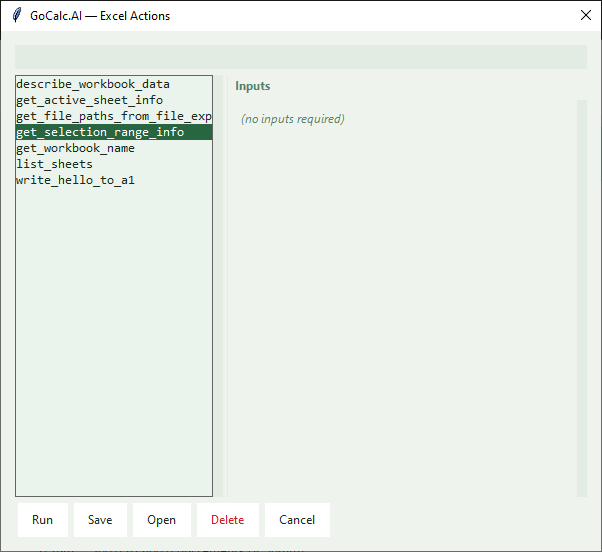
| Feature | How to use it |
|---|---|
| Search / Filter | Type in the search box to filter actions by name in real time. |
| Test Run | Select an action and click Test Run to execute it with the current input values shown in the right panel. |
| Double-click | Double-click any action to immediately test-run it. |
| Save Inputs | Write the current input field values back to TEST_ARGS in the action's .py file — so they become the defaults next time. |
| Open (.py) | Open the action's Python source file in your system default editor. |
| Delete | Remove custom actions you no longer need. The .py file is deleted and the registry is reloaded immediately. |
5 Files & Voice Input
GoCalc.AI is multimodal — you can send images, documents, and spoken commands alongside your text.
Attaching Images
Paste from Clipboard
Press Ctrl+V anywhere in the chat window to paste a screenshot directly. Ideal for sharing a screenshot of your current workbook without saving a file.
Attach Files
Click the attach button in the toolbar and browse for PNG, JPG, JPEG, BMP, GIF, or WebP images. You can attach multiple files at once.
Remove Before Sending
Each attachment shows a thumbnail with a ✕ button. Click it to remove that file before you send your message.
Take a screenshot of your spreadsheet, paste it with Ctrl+V, and ask "What formula should I use to calculate the totals in column D?" — the AI can see and analyse the image and give you targeted advice.
Supported Document Types
| File Type | How the AI uses it |
|---|---|
| Reads the text content; useful for attaching specification documents or design briefs. | |
| CSV | Reads the data rows; useful for column schedules or coordinate lists. |
| TXT / MD | Reads the content as plain text. |
| JSON / PY | Reads the file as structured data or code. |
Voice Input
-
Click the 🎤 microphone button The button turns red and shows a stop icon (⏹). Speak your command clearly.
-
Click ⏹ to stop recording Your speech is sent to OpenAI Whisper for transcription.
-
Review and send The transcribed text appears in the composer. Edit it if needed, then press Enter to send.
Voice input uses OpenAI Whisper for transcription. An OpenAI API key must be configured even if you're using Claude or Gemini as your main AI model.
6 Conversation History
GoCalc.AI automatically saves every conversation so you can pick up where you left off or review past work.
Auto-Saved
Every message exchange is saved after each reply. You never need to manually save.
Reload Any Conversation
Click any conversation in the left sidebar to restore the full message history and continue from there.
Start New
Click New Conversation in the toolbar. The current chat stays saved in the sidebar.
Delete
Click the × button next to any conversation to permanently remove it.
Conversations are stored locally in conversation_history.json in the application folder. The sidebar shows each conversation's title (derived from your first message) and its creation date and time.
7 AI Models
GoCalc.AI supports four AI providers. Select your model in the Options dialog (⚙️ in the toolbar) — changes take effect immediately without restarting the app.
OpenAI (ChatGPT)
GPT-4.1, GPT-4o, o1, o3, o4-mini and more. Excellent all-around for Excel tasks and required for voice transcription (Whisper).
Anthropic (Claude)
Claude Opus, Sonnet, and Haiku. Excellent for detailed reasoning and longer, multi-step conversations.
Google (Gemini)
Gemini Pro and Flash models. Strong at image analysis and multimodal queries.
Ollama (Extended)
Kimi, Qwen3, DeepSeek, Mistral, Gemma, and 25+ more models for specialised use cases.
Not sure which model to use? Start with the default (usually GPT-4o or Claude Sonnet). Switch to a faster model like gpt-4.1-mini or claude-haiku for quick, simple queries to save time. Open Options → AI Model to change the model at any time.
Attaching images? Not all models support image input. If you attach a screenshot and the selected model does not support vision, GoCalc.AI will display a short error message asking you to remove the image or switch to a vision-capable model (e.g., GPT-4o, Claude Sonnet, or Gemini Flash).
8 Options & Configuration
Click the Options button (always the last button in the toolbar) to open the Options & Configuration dialog. All settings take effect immediately — no restart required.
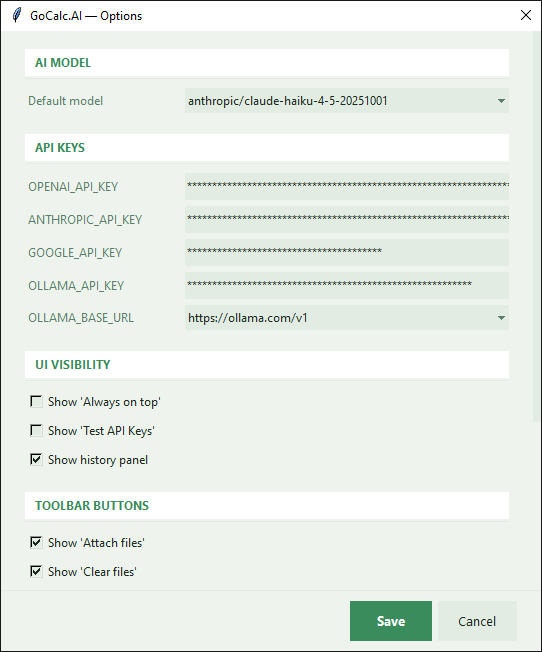
AI Model
Choose the active AI provider and model from the AI Model drop-down at the top of the Options dialog. The selection is saved to aimodel.json and applied to the current session right away.
API Keys
Enter / Update Keys
Type or paste your API key into the corresponding field (OpenAI, Anthropic, Google, or Ollama). Click Save and the key is encrypted before being written to aimodel.json — no plain-text keys are ever stored on disk.
Machine-Specific Encryption
Keys are encrypted using a key derived from your machine name and Windows username. The same aimodel.json file cannot be decrypted on a different computer. Existing plain-text keys in old config files are still recognised and continue to work.
Ollama Base URL
Select Cloud (ollama.com) or Local (localhost:11434) from the Ollama URL drop-down, or type a custom endpoint. This controls where Ollama API calls are sent.
| Provider | Field | Where to get a key |
|---|---|---|
| OpenAI | OpenAI API Key | platform.openai.com → API keys |
| Anthropic | Anthropic API Key | console.anthropic.com → API keys |
| Google API Key | aistudio.google.com → Get API key | |
| Ollama | Ollama API Key + Base URL | ollama.com account page (cloud), or leave key blank for local Ollama |
Toolbar Button Visibility
Use the checkboxes in the Toolbar Buttons section to show or hide individual buttons. Changes are written to config.json and the toolbar updates immediately without closing the dialog.
| Toggle | Controls | Default |
|---|---|---|
| Show Attach Files button | 📎 Attach files button | Visible |
| Show Clear Files button | 🗑 Clear files button | Visible |
| Show New Conversation button | ➕ New conversation button | Visible |
| Show Actions button | ⚡ Actions browser button | Visible |
| Show About button | ℹ About dialog button | Visible |
| Show Style button | 🎨 Theme picker button | Visible |
| Show Test API Keys button | 🔌 API key test button | Hidden |
| Show Always on Top checkbox | 📌 Always on top toggle | Visible |
AutoFix
The Auto-Fix section controls how GoCalc.AI handles errors when creating new custom actions.
| Setting | Default | What it does |
|---|---|---|
| Enable AUTOFIX | On | After writing a new action, automatically test-runs it against the live workbook. On failure, silently rewrites and retries the action code. |
| AUTOFIX max retries | 1 | Maximum number of fix-and-retry cycles before the AI gives up and reports the failure. Range: 0–10. |
With AUTOFIX on, the AI will attempt to self-correct code errors in newly created actions automatically. Set max retries to 0 to disable automatic retries while keeping the test-run feedback visible.
Saving
Click Save at the bottom of the dialog to write all changes. The dialog closes automatically. There is no confirmation popup — the save is silent and immediate.
Advanced users can still edit aimodel.json and config.json directly with a text editor. The Options dialog reads and writes the same files — both approaches are compatible.
9 Themes
Click the Style button in the toolbar to open the theme picker. Your selection is saved automatically and applied every time you open GoCalc.AI.
The currently active theme is highlighted with an accent border in the picker. Click any swatch to preview and apply it instantly.
10 Keyboard Shortcuts
| Shortcut | Action |
|---|---|
| Enter | Send message |
| Click Stop | Cancel the current AI response and re-enable the input immediately |
| Shift + Enter | Insert a new line in the message |
| Ctrl + V | Paste image from clipboard into attachments |
| Click 🎤 then ⏹ | Start / stop voice recording |
| Double-click an action | Test-run the action in the Actions Browser |
| Click × in sidebar | Delete a saved conversation |
| Ctrl + Z (in Excel) | Undo the last AI-executed Excel change |
11 Tips & Best Practices
Read before you write
Ask "Describe the data in this workbook" first so the AI knows the sheet names, headers, and layout before making changes.
Use screenshots for context
Paste a screenshot of your spreadsheet with Ctrl+V and ask questions about what's shown. The AI can see and analyse images.
Work incrementally
Read data first, analyse, then write — each as a separate message for best results. Avoid combining many different changes into one prompt.
New conversation for new tasks
Start a fresh conversation when switching to a different workbook or task to keep context clean and avoid confusion.
Always on top
Enable "Always on top" so the GoCalc.AI window stays visible while you work in Excel — no alt-tabbing needed.
Name sheets and ranges precisely
Refer to data as "the Demand column in the Loads sheet" rather than "the data". The more specific you are, the less chance of the AI writing to the wrong cell.
Request custom actions freely
There's no limit on custom actions. Ask for anything: "Create an action that sorts column A alphabetically." The AI writes and installs it instantly.
Use AUTOFIX for reliability
Keep AUTOFIX enabled so the AI tests and self-corrects newly created actions before reporting success. Increase max retries for complex actions.
Switch models on the fly
Open Options and change the AI model mid-conversation. The next message uses the new model — no restart, no lost context.
Keep API keys secure
Always enter keys through the Options dialog — they are encrypted with a machine-specific key before being written to aimodel.json. Never share that file.
Example Prompts to Try
Undo is your safety net. GoCalc.AI executes real Excel COM commands. Press Ctrl+Z in Excel to undo any AI-generated change — exactly the same as undoing a manual edit.